


Corporate Event AV Setup Guide
Blackmagic ATEM Extreme • Two PowerPoint laptops • Two projectors • Wireless headset microphone

Room setup illustration. Both projectors display the same AVNetwork holding slide.
Laptop A runs the presentation. Laptop B is the backup. The ATEM sends the same Program feed to both projectors. The presenter’s wireless headset goes through the audio mixer to the room speakers.
1. Set up the room
2. Connect the laptops, ATEM, and projectors
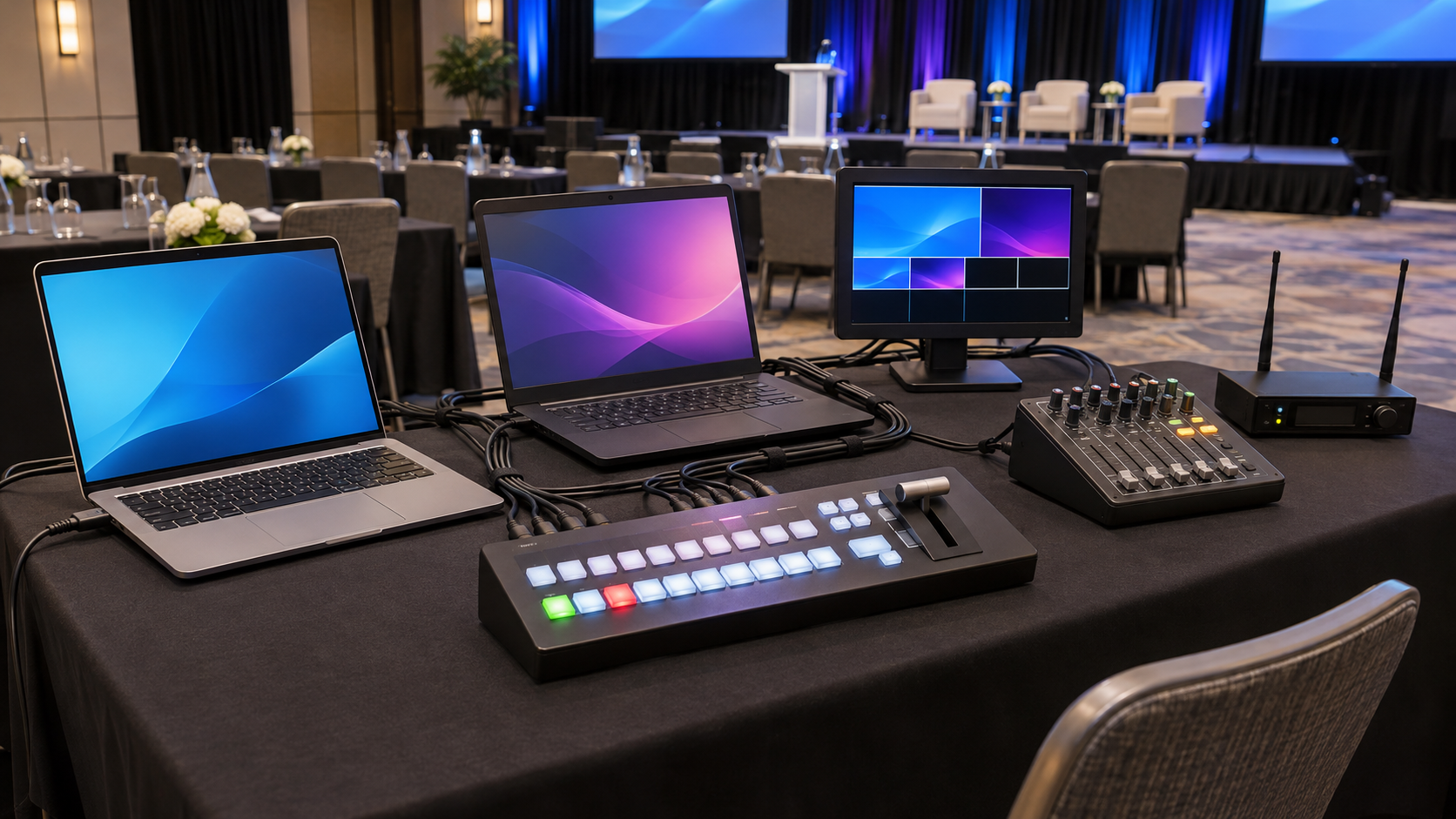
Tech table illustration. Two laptops, a video switcher, a multiview monitor, an audio mixer, and a wireless receiver.
Blackmagic ATEM SDI Extreme ISO
Use powered converters and rated 75-ohm SDI cable. This setup uses four converters for the laptops and projectors, plus one if the multiview monitor requires HDMI. If using a single Program output, feed both projector runs through a powered SDI distribution amplifier.
If you have the HDMI ATEM Mini Extreme
Connect the laptops directly to HDMI inputs 1 and 2. Set one HDMI output to Program and use a powered 1×2 HDMI distribution amplifier to feed both projectors. Set a second output to Multiview for the tech monitor. For longer projector runs, use a tested HDMI extension system or convert to SDI and back to HDMI.
Video format
Use a common HD format supported by the whole signal path. Start with 1920 × 1080 at 59.94 or 60 Hz if all devices support it. Match the ATEM video standard and verify both projectors display Program.
3. Prepare both PowerPoint laptops
4. Set up the wireless headset microphone

Headset fit illustration. Position the boom near the corner of the presenter’s mouth according to the microphone manufacturer’s instructions.
Audio path — Headset → bodypack transmitter → wireless receiver → audio mixer → powered PA speakers.
If recording or streaming is required — Send a separate mixer feed to the ATEM using the appropriate input level and adapter. If ATEM Program audio returns to the mixer, exclude that return from the feed going back to the ATEM. Test speech and playback on the actual recording or stream, and verify the backup recorder.
5. Rehearse before doors open
Quick fixes during the show
One projector is blank. Check its input selection, converter power and direction, SDI connection, and HDMI cable.
Both projectors are blank. Check Program in multiview. If Program looks good, check the output assignments and any shared distribution equipment. If Program is blank, take the holding slide or backup laptop live.
The audience sees notes or the desktop. Take the holding slide live. Correct the PowerPoint display assignment and check the result in multiview before switching back.
The headset drops out or feeds back. Mute the channel and switch to the backup microphone. Check batteries, wireless coverage, mic placement, gain, and speaker position.
Video plays without sound. Check the laptop’s selected audio output, the mixer playback channel, and the PA.
Equipment references
Blackmagic ATEM Extreme • Two PowerPoint laptops • Two projectors • Wireless headset microphone
Room setup illustration. Both projectors display the same AVNetwork holding slide.
Laptop A runs the presentation. Laptop B is the backup. The ATEM sends the same Program feed to both projectors. The presenter’s wireless headset goes through the audio mixer to the room speakers.
1. Set up the room
- Set a projection screen on each side of the stage. Secure the frames and stands according to the manufacturer’s instructions. Check sightlines from the front, back, and sides of the room.
- Position one projector per screen. Check the lens throw range for the screen width, then align, zoom, and focus each projector. Use lens shift if available.
- Place the PA speakers ahead of the presenter’s working area and aim them toward the audience.
- Set the tech table where you can see both screens and hear the room. Route cables along the perimeter where practical and protect any cables that cross walking paths.
2. Connect the laptops, ATEM, and projectors
Tech table illustration. Two laptops, a video switcher, a multiview monitor, an audio mixer, and a wireless receiver.
Blackmagic ATEM SDI Extreme ISO
- Input 1 — Laptop A HDMI → HDMI-to-SDI converter → ATEM SDI input 1.
- Input 2 — Laptop B HDMI → HDMI-to-SDI converter → ATEM SDI input 2.
- Output 1 — Set to Program. Run SDI to the left projector. Convert SDI to HDMI at the projector and connect to its HDMI input.
- Output 2 — Set to Program. Repeat the same path to the right projector.
- Output 3 — Set to Multiview. Connect the tech monitor using SDI, or add an SDI-to-HDMI converter if the monitor takes HDMI.
Use powered converters and rated 75-ohm SDI cable. This setup uses four converters for the laptops and projectors, plus one if the multiview monitor requires HDMI. If using a single Program output, feed both projector runs through a powered SDI distribution amplifier.
If you have the HDMI ATEM Mini Extreme
Connect the laptops directly to HDMI inputs 1 and 2. Set one HDMI output to Program and use a powered 1×2 HDMI distribution amplifier to feed both projectors. Set a second output to Multiview for the tech monitor. For longer projector runs, use a tested HDMI extension system or convert to SDI and back to HDMI.
Video format
Use a common HD format supported by the whole signal path. Start with 1920 × 1080 at 59.94 or 60 Hz if all devices support it. Match the ATEM video standard and verify both projectors display Program.
3. Prepare both PowerPoint laptops
- Plug both laptops into AC power. Copy the final PowerPoint deck and any linked media to both machines and test them locally.
- If using Presenter View, set the ATEM-connected display to Extend. Assign the slide show to that display and keep speaker notes on the laptop screen.
- Label the inputs A – Primary and B – Backup. Check both in multiview and confirm the projectors show full-screen slides.
- Enable Do Not Disturb, prevent sleep, and test the clicker from the stage. Confirm which laptop the clicker controls.
- Load a client-approved holding slide on a dedicated source or in the ATEM media pool. Keep Laptop B ready at the current slide or cue.
4. Set up the wireless headset microphone
Headset fit illustration. Position the boom near the corner of the presenter’s mouth according to the microphone manufacturer’s instructions.
Audio path — Headset → bodypack transmitter → wireless receiver → audio mixer → powered PA speakers.
- Fit the headset and secure the bodypack. Install fresh or fully charged batteries and have spares ready.
- Scan for a clear wireless channel, sync the transmitter and receiver, and walk the stage with the presenter speaking at show volume.
- Connect the receiver to the mixer. Match the receiver output level to the mixer input, label the channel Presenter, and keep phantom power off on that channel.
- Connect the mixer to the powered PA speakers using balanced cables. Set the presenter’s input gain with the PA muted or turned down. Bring the speakers up gradually and check clarity and feedback from the seating area.
- If the deck has audio, route laptop playback into a separate mixer channel or extract audio from ATEM Program into the mixer. Use one playback path and mute the projector speakers.
If recording or streaming is required — Send a separate mixer feed to the ATEM using the appropriate input level and adapter. If ATEM Program audio returns to the mixer, exclude that return from the feed going back to the ATEM. Test speech and playback on the actual recording or stream, and verify the backup recorder.
5. Rehearse before doors open
- Put up the holding slide and confirm both projection screens show the same sharp Program feed.
- Check Laptop A in multiview, then take it live. Test the clicker, slide transitions, embedded video, and room audio.
- Cue Laptop B and rehearse switching to it. Confirm you can advance slides on the backup machine.
- Have the presenter walk their speaking area with the headset live. Check for dropouts, feedback, and speech clarity from the audience seats.
- Keep a backup microphone, spare batteries, converter power supply, and tested HDMI and SDI cables within reach.
Quick fixes during the show
One projector is blank. Check its input selection, converter power and direction, SDI connection, and HDMI cable.
Both projectors are blank. Check Program in multiview. If Program looks good, check the output assignments and any shared distribution equipment. If Program is blank, take the holding slide or backup laptop live.
The audience sees notes or the desktop. Take the holding slide live. Correct the PowerPoint display assignment and check the result in multiview before switching back.
The headset drops out or feeds back. Mute the channel and switch to the backup microphone. Check batteries, wireless coverage, mic placement, gain, and speaker position.
Video plays without sound. Check the laptop’s selected audio output, the mixer playback channel, and the PA.
Equipment references